



A Xiaomi Phone black screen can feel like a disaster in slow motion. Photos, WhatsApp chats, banking apps, and those one-time OTP codes can suddenly feel out of reach.
- Try this first, a 30 to 60-second restart that can bring the screen back
- Quick checks that solve most black screen cases in 2 to 5 minutes
- Charging test, different cable, charger, outlet, then wait 20 to 30 minutes
- Look for signs your phone is actually on (vibration, sounds, notification light)
- If the phone is on but the screen stays black, test for a broken display
- Deeper fixes for HyperOS or MIUI when the phone will not boot normally
- When to stop DIY and get repair help (and what to tell the shop)
- FAQ: quick answers when you are worried about data and what caused it
- Will a force restart delete my data?
- Why is my Xiaomi vibrating but the screen is black?
- Can a dead battery cause a black screen that looks like a broken phone?
- Did a HyperOS or MIUI update cause the black screen?
- Conclusion
This problem often occurs after a battery drains to 0% or right after a MIUI or HyperOS update. The good news is that many cases are recoverable with simple steps that don’t erase data.
Try this first, a 30 to 60-second restart that can bring the screen back

Photo by Josh Sorenson
Before changing settings or worrying about repairs, try a force restart. This is a hard reboot, not a factory reset, so it doesn’t delete data. It fixes a lot of “frozen system” moments where the phone is on but the screen stays off.
Try this first (safe, no data loss):
Hold the buttons for 10 to 20 seconds. If nothing happens, try again once more. Button combos can vary by model (Xiaomi, Redmi, Poco).
Force restart button combos to try (no data loss)
- Power + Volume Up for 10 to 15 seconds, then release when there’s a vibration or the Xiaomi/Redmi/Poco logo appears.
- Power button only for 10 to 30 seconds (some models need a longer press).
- If it boots to a menu (Recovery), keep holding for a brief while until it restarts.
Stop here if it turns on.
Quick checks that solve most black screen cases in 2 to 5 minutes
Most “won’t turn on” reports are power-related, not permanent failure. A weak cable, a worn adapter, or a fully drained battery can leave the phone looking dead even when it’s recoverable. The goal is to confirm stable power and look for basic signs of life.
For Xiaomi’s official guidance on black screens, see Xiaomi support on black screen symptoms.
Charging test, different cable, charger, outlet, then wait 20 to 30 minutes
- Swap to a known-good cable first; cheap cables fail often and still “fit” the port.
- Swap the wall adapter, then try a different wall outlet.
- Avoid weak laptop USB ports for this test; they may not deliver enough power to wake a fully drained battery.
- Leave the phone charging untouched for 20 to 30 minutes (longer if it died at 0%). Some Xiaomi phones show nothing at first when the battery is extremely low.
- Check for clues: a charging icon, a notification LED, or slight warmth near the battery area.
If the charging port looks dusty, clean it gently with a wood toothpick only. No metal, no force. Port damage can turn a small problem into a bigger one.
Look for signs your phone is actually on (vibration, sounds, notification light)
These checks matter because they separate “no power” from “display not working.”
- Press Volume Up or Down; listen for volume ticks or feel vibration.
- Plug in the charger and watch for any LED blink.
- Call the phone from another device; listen for a ring, vibration, or a Bluetooth connection.
If there’s vibration or sound, the phone may be running, but the screen isn’t showing it yet.
| Symptom | Best fix to try first |
|---|---|
| No icon, no LED, no warmth | Known-good charger + wait 30 minutes |
| Vibrates or rings, screen stays black | Flashlight test, likely display/backlight |
| Stuck on logo | Force restart, then Recovery cache wipe |
| Enters Fastboot | Exit Fastboot, then try Recovery options |
If the phone is on but the screen stays black, test for a broken display

This section is about distinguishing between “phone is dead” and “no display.” It stays safe and avoids opening the device. If the phone seems to run but shows nothing, the data may still be intact, which changes the next move.
A common pattern is impact damage: the phone falls, still vibrates, still receives calls, but the display or backlight fails. Another pattern is a loose internal connector, which often needs a shop, not a home fix.
Easy screen checks, call it, screenshot sound, flashlight test
- Call the phone and watch for vibration or ringtone.
- Try a screenshot (often Power + Volume Down). If there’s a shutter sound or vibration, the system is responding.
- Shine a flashlight at an angle across the screen in a dark room. A faint image can mean the backlight failed while the panel still draws a picture.
If notifications come in but nothing shows, it points to a screen or backlight issue, not a full device failure.
Deeper fixes for HyperOS or MIUI when the phone will not boot normally
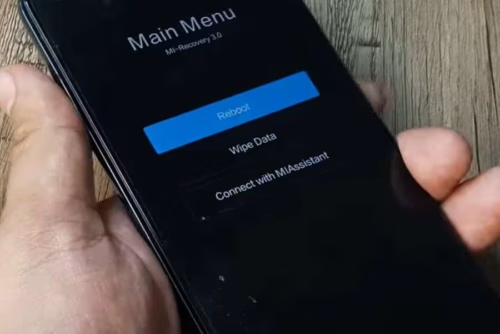
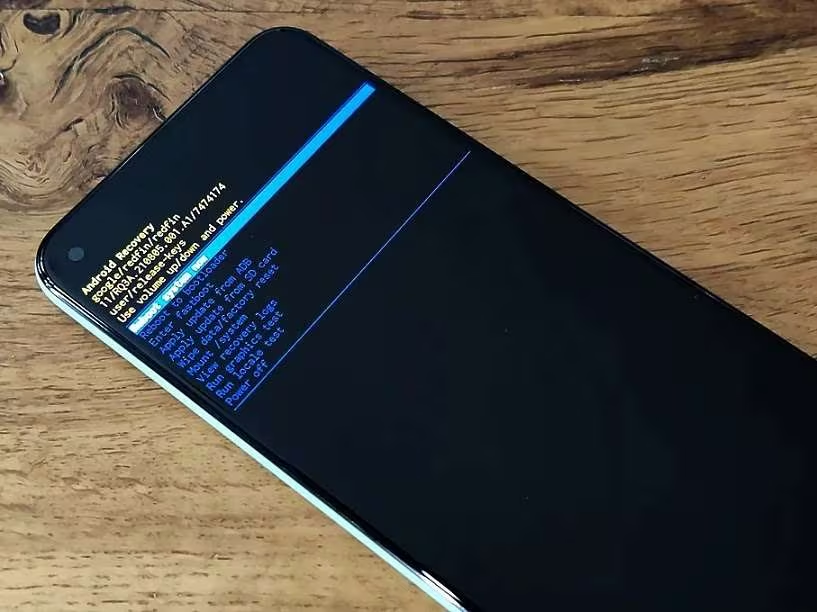
If the phone still won’t boot after a full charge and force restarts, software recovery modes can help. These modes exist so a phone can start without loading the full system.
Avoid random firmware flashing unless the process is understood and data loss is acceptable. For many users, Recovery steps are the safer limit.
Fastboot and Recovery mode, then try wipe cache (factory reset only last)
- Fastboot mode (often): hold Power + Volume Down until a Fastboot screen appears. If it shows up by accident, hold the Power button to reboot out.
- Recovery mode (often): hold Power + Volume Up until the logo appears, then release when Recovery loads.
Inside Recovery, look for Wipe cache partition (wording varies, and some models don’t offer it). A cache wipe clears temporary system files, and it is not the same as deleting photos and apps. After that, choose Reboot.
Warning: a factory reset wipes data (photos, apps, local files). Only use it if data loss is acceptable.
If nothing changes after Recovery plus known-good charging, hardware becomes more likely.
When to stop DIY and get repair help (and what to tell the shop)
DIY steps should stop when there’s risk of making the damage worse, or when symptoms point to hardware. A good repair shop can test the battery, screen, and charging circuit quickly, often without wiping storage.
It helps to bring details, not guesses: model name, when it last worked, and whether an update happened right before the failure. Xiaomi also posts general “can’t turn on” checks similar to this flow at Xiaomi’s power-on troubleshooting page.
Hardware warning signs, drops, water, overheating, no charging signs at all
Red flags that suggest hardware:
- Recent drop, bent frame, or pressure on the screen
- Water exposure, foggy camera lens, or corrosion in the port
- Phone got very hot, smells burnt, or the back looks swollen (possible battery issue)
- No vibration, no LED, no charging symbol after testing a known-good charger and cable
Likely causes include battery failure, damaged display, a bad charging port, or motherboard issues.
FAQ: quick answers when you are worried about data and what caused it
Will a force restart delete my data?
No. A force restart is like a hard reboot. It’s different from a factory reset, which erases data.
Why is my Xiaomi vibrating but the screen is black?
The phone may be on, but the display or backlight may be failing. It can also be a system freeze that still allows alerts. The flashlight test and calling test help confirm which one it is.
Can a dead battery cause a black screen that looks like a broken phone?
Yes. After a full drain, the phone may need 20 to 30 minutes on a known-good charger before the screen wakes up.
Did a HyperOS or MIUI update cause the black screen?
Sometimes updates trigger boot problems, but battery timing and crashes can look the same. Recovery mode and a cache wipe (if available) should come before any factory reset.
Conclusion
Most black-screen cases stem from power issues, temporary crashes, or display failures, and the safest steps come first.
- Charge with a known-good setup, then wait 20 to 30 minutes
- Force restart (Power + Volume Up, then Power alone)
- Check signs of life (call, vibration, LED, sounds)
- Test the screen (screenshot sound, flashlight angle)
- Try Recovery or Fastboot, then seek repair help if needed
If a Xiaomi, Redmi, or Poco device is showing a black screen and won’t turn on after these steps, comment with the exact model, MIUI or HyperOS version, and what happened right before it went dark. Based on common Xiaomi recovery methods and user reports.
SEE ALSO: Windows 12: New Features and System Upgrade Requirements