

Every December my feed fills up with people sharing their “LinkedIn year in review.” At first, I ignored it. Then I realized it is actually a quick snapshot of your whole professional year in one place.
It pulls together your career milestones, the posts that did well, and how your network grew over the year. In this guide, I will show you what LinkedIn Year in Review is, how to find it, and how to use it to tell a real and honest story about your work, not just a highlight reel.
Think of LinkedIn Year in Review as a simple annual professional summary. It turns a year of small actions into a clear picture. You get one place to see what changed in your work life, who you reached, and what content actually connected with people.
This guide walks through what the feature is, how to access it on mobile and desktop, how to read each part, how to turn it into a post that feels honest, and how to stay safe with privacy and data.
What is LinkedIn Year in Review?
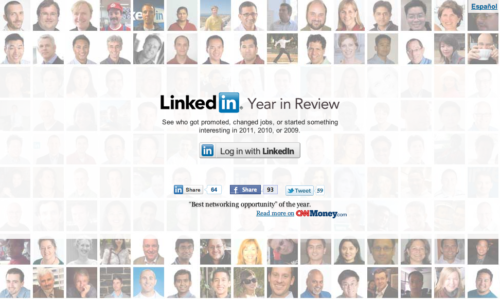
LinkedIn Year in Review is a personalized annual recap that shows how you used LinkedIn over the past 12 months. It looks like a short story or card deck that collects your main career highlights, network growth statistics, top content engagement, profile views, and other professional achievements. It works as a quick view of your personal branding highlights and career milestones on LinkedIn this year.
It feels a lot like Spotify Wrapped, but for your work life. The 2025 version rolls out in December and early January. Many users first see it in the mobile app as a banner or story-style card.
Rollout comes in waves. Some people see their LinkedIn annual recap right away, others a bit later. Tech coverage, such as this Times of India explainer on the 2025 rollout, confirms that timing can vary by country and activity level.
How LinkedIn Year in Review works behind the scenes
LinkedIn looks at your activity from the last year and turns it into simple stats and visual cards. That includes:
- Posts and comments
- Profile views and search appearances
- New connections and followers
- Job updates and skills added
- LinkedIn Learning courses and badges
The whole thing is automated. You cannot change the numbers inside the recap, because it is built only from what you actually did.
In 2025, many users will also see an AI-written short summary, small badges for growth or learning, and comparisons with others in their field. These appear in the visual story when the feature is active.
Who gets LinkedIn Year in Review and when it shows up
Most active personal accounts get a LinkedIn Year in Review card. Very new or quiet accounts may not have enough activity to trigger it.
The feature rolls out in December, then spreads into early January. Timing can depend on your region, activity level, and app version. If you do not see it yet, that does not mean you did anything wrong. It usually just means your account is in a later wave or there was not enough data.
How to find and access your LinkedIn Year in Review
LinkedIn puts the recap in a few main spots, with mobile first. You may see wording like “Your 2025 Year in Review,” “LinkedIn recap,” or “Your year in moments.”
Guides such as this Inc. article on finding your LinkedIn Year in Review show the same core paths: home feed banner, profile area, and notifications.
Step-by-step guide on mobile (iPhone and Android)
- Open the LinkedIn app and sign in.
- Look at the top of your Home feed for a Year in Review or 2025 recap banner.
- Tap the banner to open your story-style recap.
- If you do not see it, tap your profile picture, then “View profile,” and scroll near the top for a Year in Review card.
- Open the Notifications tab and look for a card inviting you to “See your 2025 Year in Review.”
- Check your phone notifications; LinkedIn may send a push that opens the recap directly.
Finding LinkedIn Year in Review on desktop
- Go to linkedin.com and sign in.
- Check the top of your Home feed for a Year in Review banner or card.
- If nothing shows, click your profile photo, choose “View profile,” and look near the top for a recap prompt.
- Desktop layout in 2025 is closer to mobile, so you should see the same visual cards if your account has the feature.
You can also try visiting the direct recap link at linkedin.com/your-year-in-review/2025 once you are signed in.
What to do if you do not see your LinkedIn Year in Review
If your LinkedIn year in review is missing, try simple checks:
- Update the LinkedIn app to the latest version.
- Close and reopen the app, then recheck the Home feed and Notifications.
- Look in your email for a message from LinkedIn with a direct recap link.
- Wait a few days; rollout is phased and may not reach your account yet.
Very low-activity accounts sometimes do not get the feature at all. You can still review your year by looking at regular LinkedIn analytics for posts and using the “Get a copy of your data” option in Settings.
What is inside your LinkedIn Year in Review recap?
The 2025 recap is built as a simple story you tap or click through, from top-level numbers down to more detail. The goal is not only to show LinkedIn statistics for your profile, but to help you see real patterns in your year.
Main parts usually include:
- Career milestones and highlights
- Network growth statistics
- Top content engagement and profile performance
- Skill development updates and learning
- Industry insights and connection analytics
Career milestones and work highlights
This section acts as your annual professional summary. It can show:
- New jobs or role changes
- Promotions or work anniversaries
- Completed degrees or certificates
- Big profile changes, such as a new headline
Even small moves, such as taking on a part-time leadership role or earning a certification, can be clear career highlights. It is a reminder of progress you might forget by December.
Network growth statistics and connection analytics
Here you see how your network changed. Typical items:
- Number of new connections and followers
- Top cities or countries where your network grew
- Common industries or companies of new contacts
This is a quick way to check whether your LinkedIn connection growth aligns with your goals. For example, if you want more tech contacts but your recap shows most new people are from unrelated fields, you can adjust next year.
Top content engagement and profile performance
This part focuses on LinkedIn analytics for posts and profiles:
- Your posts with the most reactions, comments, shares, or saves
- Basic LinkedIn engagement metrics, such as impressions or reach
- Months when your profile views peaked
- How often have you appeared in search
Impressions are the number of times your post was shown. Engagement is measured by what people did with it. If a behind-the-scenes story about a project brings more engagement than a polished press-style post, that is a signal about what your audience likes.
Skill development updates and learning activity
Here you see how your skills showed up this year:
- New skills you added to your profile
- The skills people used when they found you in search
- LinkedIn Learning courses or learning badges you completed
This section points to your real skill development updates. If the skills in this card do not match where you want to go, that is a hint to update your profile and your learning plan.
Industry insights and trends in your network
Some cards focus on what happened around you:
- How many of your connections changed jobs
- Which industries were most active in your network
- Where many of your viewers or connections work
This gives basic industry insights. You can see how your own path fits into broader shifts, like a move toward AI roles or more remote jobs, which recent coverage, such as Business Insider’s Year in Review data, also highlights.
How to use LinkedIn Year in Review to improve your career
LinkedIn’s year in review is more than a fun card. It can guide real decisions about your profile, skills, and content.
Turn your recap into an annual professional summary
Pick 3 to 5 key points from your recap:
- One or two career milestones
- One important project or result
- One skill you grew
- One change in your network
Write them as a short paragraph in a note, resume draft, or performance review doc. You now have a simple professional year in review template you can reuse.
Spot patterns in your posts and engagement
Look at your top posts and their themes:
- Are they personal stories, tips, or deep how-tos?
- Do they focus on problems, wins, or lessons?
If posts about solving client issues got the most comments, plan more of that. You just built a basic LinkedIn content strategy from real data, not guesses.
Use your recap to refresh your LinkedIn profile.
Use what shows up in your LinkedIn profile performance cards to make small updates:
- Headline: add your most visible role and 1-2 key skills.
- About section: write a short story of your year in 3 to 4 lines.
- Featured section: pin 2 or 3 posts that had strong engagement.
- Skills: move in-demand skills to the top and remove ones you no longer use.
These changes help your LinkedIn personal brand align with the data already showing.
Plan your next skills and career moves
Gaps in your recap are useful:
- No learning card? Pick one course to finish next quarter.
- Few contacts in your target industry? Set a goal to connect with a set number of people a month.
- Weak content? Try one new post format each month, such as a short tip or mini case study.
Small, steady actions across the year usually lead to a stronger recap next time.
Examples for job seekers, freelancers, managers, and students
- Job seeker: Use network growth statistics and top content engagement to prove you are active in your field. Turn your recap into three bullet points for your resume summary.
- Freelancer or coach: Highlight posts that show client outcomes and use them as social proof in your proposals.
- Team leader or manager: Focus on cards that show team wins, hiring, or mentoring. Turn them into a short story for your following review.
- Student or recent grad: Point to internships, courses, and new skills as your main professional achievements. Use the recap to build your first strong About section.
How to turn your LinkedIn Year in Review into a great post
Many people use their LinkedIn annual recap as a year-end LinkedIn post idea. Shared well; it looks like a simple, honest update rather than bragging.
When and why to share your LinkedIn Year in Review
Most users share their recap in late December or the first week of January. Reasons to post include:
- Marking the end of your professional year
- Thanking people who helped you
- Showing your work in a clear, visual way
- Signaling that you are open to new roles or clients
Sharing is optional. You can keep the recap private if that feels better.
How to write a simple, honest caption that is not braggy
Keep your caption:
- Short, 2 to 4 lines
- Focused on both wins and challenges
- Grateful in tone, not just numbers
Mention what you learned and who supported you. End with a soft prompt, such as asking what others learned this year or inviting people in your field to connect.
Easy LinkedIn Year in Review caption templates
You can copy, tweak, and fill in your own details.
1. Humble, reflective caption
Wrapped up my LinkedIn Year in Review and it reminded me how much changed this year.
Grateful for [project / role / team] and the people who helped me grow.
Not everything was easy, but I learned a lot along the way.
What is one thing you are proud of from this year?
2. Open to work caption
My LinkedIn Year in Review shows a year of learning, networking, and searching for the right next step.
I focused on building skills in [skill] and [skill], and sharing what I know.
In 2026, I am open to roles in [target roles / industries].
If you know teams hiring for this kind of work, I would love to connect.
3. Team-focused caption
This Year in Review is really a story about our team.
From [key project] to [result], we did all of it together.
Grateful for everyone I get to work with every day.
What was a favorite team win from your year?
4. Freelancer or creator caption
My LinkedIn Year in Review highlights clients, content, and a lot of experiments.
The posts that performed best were the simple ones, sharing real work behind the scenes.
In 2026, I am taking on new clients in [niche] and [niche].
If you like this kind of content, feel free to connect or reach out.
Privacy, data, and what not to share from your recap
LinkedIn Year in Review is built from data the platform already has about your activity. The full recap is private to you until you choose to share it.
LinkedIn’s own help text and recent coverage, such as this Financial Express guide on the feature and how to check your recap, stress that nothing posts automatically.
What LinkedIn does with your Year in Review data
LinkedIn reuses normal activity data to create the recap, such as posts, reactions, profile edits, and learning activity. The recap is simply a new way to display that data.
You can adjust privacy settings at any time and also download a copy of your broader LinkedIn data from Settings under Data privacy. The recap doesn’t share itself; you pick the audience when you post it.
Simple rules for what not to share in your public post
Safe posting is mostly common sense. Avoid sharing:
- Confidential client names or contract details
- Internal company numbers, such as revenue, margin, or private KPIs
- Anything covered by a non-disclosure agreement
- Personal contact information for you or others
It is safer to talk about skills, learning, impact, and teamwork instead of hard internal figures. If you are unsure, check your employer’s social media policy.
A quick privacy checklist before you hit post
Before you share your LinkedIn year in review:
- Remove or crop screenshots that show private dashboards or tools
- Hide email addresses, phone numbers, or internal links
- Avoid naming people who might not want public credit or tags
- Make sure your caption does not include secret numbers or roadmaps
- Double-check the audience setting on the post (public or connections only)
Frequently asked questions about LinkedIn Year in Review
What is LinkedIn Year in Review?
LinkedIn Year in Review is an automated annual recap that shows how you used LinkedIn over the past year. It gathers your career highlights, content performance, and connection analytics into one short story.
The feature helps you see your professional achievements and network growth in one place so you can reflect on the year and plan simple next steps.
What is the 5 3 2 rule on LinkedIn?
The 5-3-2 rule on LinkedIn is a simple posting guide. Out of 10 posts, five should be helpful content from others, three should be your own tips or insights, and 2 should be more personal posts that show who you are.
A mix like this often leads to stronger engagement and a more balanced LinkedIn year in review at the end of the year.
How to see LinkedIn wrapped or LinkedIn recap
LinkedIn wrapped and LinkedIn recap are just other names people use for LinkedIn Year in Review. To see it, open the mobile app, check the top of your Home feed for a banner that says something like “Your 2025 Year in Review,” or check near your profile.
You can also open the Notifications tab and look for a recap card. If you do not see it, update the app and check again in a few days, because the feature rolls out in stages and some low-activity accounts never get it.
Does LinkedIn automatically post a 1st anniversary?
LinkedIn does not automatically post a 1st work anniversary. The platform may show you a prompt in your feed or notifications, suggesting a post.
You can choose to edit the text, share it, or ignore it. The same rule applies to your Year in Review; nothing is posted unless you tap to share.
Why don’t I have the LinkedIn Year in Review yet?
You may not have the LinkedIn Year in Review yet because the feature is still rolling out, or your account is not active enough. LinkedIn often starts with more active users and specific regions.
Update your app, check your Home feed and Notifications, and wait a few days. If it never appears, you can still review your year using normal post analytics and profile stats.
Can I download my LinkedIn Year in Review data?
In 2025, many users can download visual cards from the recap as images or short videos to save or share elsewhere. Some accounts also see an option to export a small data file with key stats.
For a full data export, you can always go to Settings & Privacy> Data privacy> “Get a copy of your data.” That export is broader and does not look like the Year in Review story format.
Can I see LinkedIn Year in Review on desktop?
Yes, you can see LinkedIn Year in Review on desktop when your account has access. Sign in on linkedin.com, then check the top of your Home feed or the top of your profile for a Year in Review card or banner.
If you do not see it on the desktop, but you have it in the app, it may arrive later on the web as LinkedIn continues to roll it out.
How long is LinkedIn Year in Review available?
LinkedIn Year in Review usually appears in December and stays visible into the start of the new year. Exact timing can change, and the banner may disappear after the season ends.
If you want to keep it, save or download your recap cards while they are available so you have a record for future reviews or performance talks.
How can I improve my LinkedIn Year in Review for next year?
You can improve next year’s LinkedIn year in review with steady habits across the year. Post helpful content more often, connect with people in your target industry, and keep your profile and skills up to date.
Small actions, such as adding new skills when you learn them or sharing one helpful tip a week, add up. Your recap will then reflect a year of clear, visible progress.
Final thoughts: use LinkedIn Year in Review as a real reflection, not just a highlight reel
LinkedIn Year in Review is a tool, not a test. It gives you a snapshot of your work life, including wins, slow patches, and experiments that did not always land.
Use it to notice patterns, say thank you to people who helped you, and set simple, realistic goals for the next year. Focus on honest growth, not perfect numbers, and your annual professional summary will feel a lot more meaningful.
Conclusion
LinkedIn year in review collects your career highlights, network growth, and content performance into one short recap. You can find it through the mobile app or desktop, read each card to understand your milestones and metrics, then turn that into a clear story about your year.
Used well, it helps you refresh your profile, plan skill development, and share a post that feels real instead of braggy, while still keeping privacy in mind. If your recap feels small this year, that is fine; treat it as a starting point and let next year’s story show the progress you chose to build.