



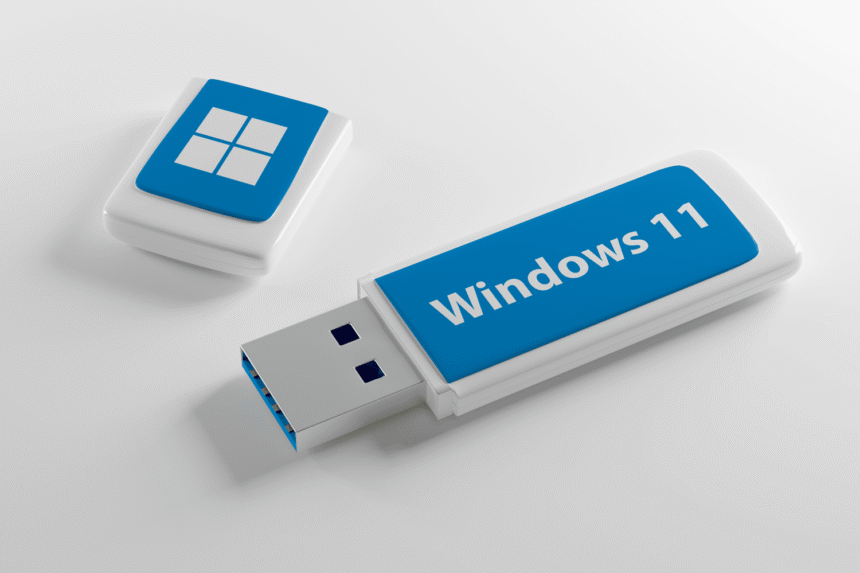
If you’re planning to install Windows 11 on a new computer, reinstall it on your current PC, or just want a backup installation media ready for emergencies, creating a Windows 11 64-bit bootable USB is one of the smartest things you can do. I’ve been through this process dozens of times, both for my own computers and helping friends and family, and I can tell you it’s way easier than it sounds.
In this guide, I’ll walk you through everything you need to know about creating a Windows 11 bootable USB. Whether you’re a complete beginner who’s never done this before or an IT professional looking for the most efficient method, this article has you covered.

Why You Actually Need a Windows 11 Bootable USB
Before we dive into the how-to, let me explain why having a bootable USB is so valuable. When I first heard about bootable drives, I thought it was just for tech geeks. Boy, was I wrong.
A Windows 11 USB installer gives you complete control over your installation. Instead of relying on an internet connection during setup, you can store everything on a USB drive. This means you can install Windows 11 anywhere, anytime, even in places with terrible internet or no connection at all.
Here’s what you can do with a bootable USB for Windows 11 offline installation:
- Install Windows on brand new computers that don’t have an operating system yet. When you build a PC from scratch or buy a barebones laptop, you’ll need installation media.
- Perform a Windows 11 clean install USB when your computer is running slowly or having serious problems. Sometimes the best fix is wiping everything and starting fresh.
- Fix a computer that won’t boot by accessing recovery tools. Your USB becomes a lifesaver when Windows won’t start normally.
- Upgrade multiple computers without downloading the installation files over and over. If you manage several PCs at home or work, this saves enormous amounts of time and bandwidth.
- Avoid download interruptions that plague online installations. I’ve had installations fail at 80% because my internet hiccupped. Never again.

What You’ll Need Before Starting
The good news is you don’t need much to create your Windows 11 installation media. Here’s what you should have ready:
- A USB flash drive with at least 8GB of storage space. I recommend using 16GB or 32GB drives because they’re cheap now and you’ll have extra space for other files if needed. The USB will be completely erased during this process, so back up anything important on it first.
- A working computer with internet access for the initial download. This can be any Windows PC, and you only need to do this once. After that, your USB works offline everywhere.
- About 30 minutes to an hour of your time, depending on your internet speed. The actual download of the Windows 11 64-bit ISO takes the longest, while creating the bootable USB drive only takes 10-15 minutes.
- Administrator access on the computer you’re using to create the USB. You’ll need permission to run the tools and format drives.
Understanding Windows 11 ISO Files vs Media Creation Tool
When I first tried to download Windows 11, I got confused by the different options Microsoft offers. Let me break it down so you don’t waste time like I did.
Microsoft gives you two main ways to get Windows 11 installation media:
The Media Creation Tool is a small program that downloads Windows 11 and creates your bootable USB automatically. It’s the easiest option for most people. You run the tool, pick your USB drive, and it handles everything. The downside is you need a stable internet connection for the entire process because it downloads while it works.
The Windows 11 64-bit ISO download gives you a single large file containing everything needed to install Windows. You download this ISO file first, then use separate software to put it on your USB drive. This approach is better if you have unreliable internet or want to keep the ISO file for future use.

I personally prefer downloading the official Windows 11 ISO download first and saving it to my hard drive. That way, I have a backup copy that I can use to create multiple USB drives or even burn to a DVD if needed. Plus, if something goes wrong with my USB, I don’t have to download everything again.
🔗 Official Microsoft Resources
- Official Windows 11 Download Page – Download Media Creation Tool or ISO directly from Microsoft
- Microsoft Support: Create Installation Media – Official documentation
- Windows 11 System Requirements – Check if your PC is compatible
Method 1: Using Microsoft’s Media Creation Tool (Easiest Way)
This is the method I recommend for beginners. Microsoft’s tool does all the heavy lifting for you.

1Start by going to Microsoft’s official Windows 11 download page. You can search for “Windows 11 download” in any browser, and the first result should be Microsoft’s official site. Look for the section that says “Create Windows 11 Installation Media.”
2Click the “Download Now” button under the Media Creation Tool section. The file is called MediaCreationToolW11.exe and it’s only about 19MB, so it downloads quickly.
3Once downloaded, right-click the file and select “Run as administrator.” You’ll see a User Account Control prompt asking for permission – click Yes. The tool needs administrator rights to work with your USB drive.
4The first screen shows Microsoft’s license terms. Nobody reads these, but you have to click Accept to continue.
5Next, you’ll see a screen asking what you want to do. Choose “Create installation media (USB flash drive, DVD, or ISO file) for another PC” and click Next.
6The tool will show recommended settings based on your current computer: language, Windows 11 Home/Pro edition, and 64-bit architecture. These defaults work for most people, but if you need a different language or edition, uncheck “Use the recommended options for this PC” and pick what you want.
7On the next screen, select “USB flash drive” and click Next. If you want to download an ISO instead, you can choose that option here.
8The tool will now show all USB drives connected to your computer. Select the one you want to use and click Next. Be absolutely sure you pick the right drive because everything on it will be deleted.
9Now the tool downloads Windows 11 and creates your bootable USB automatically. This takes anywhere from 20 minutes to an hour depending on your internet speed. The download is around 5GB, so grab a coffee and let it work.
10When it finishes, you’ll see a message saying “Your USB flash drive is ready.” Click Finish and you’re done. You now have a working Windows 11 USB installer.
Method 2: Download Windows 11 ISO 64-bit Free and Use Rufus
This method gives you more control and is my personal favorite. Rufus is a free, lightweight program that creates bootable USB drives incredibly fast.
1First, download the Windows 11 ISO 64-bit free from Microsoft’s website. On the download page, scroll down to the “Download Windows 11 Disk Image (ISO)” section.
2Select “Windows 11 (multi-edition ISO)” from the dropdown menu and click Download. On the next page, choose your language, then click Confirm. Finally, click the 64-bit Download button. The file is about 5.1GB, so it’ll take some time depending on your internet speed.
3While that downloads, go to the Rufus website and download the latest version. Rufus is completely free and doesn’t require installation. Just download the portable version and run it.
4Once your ISO download finishes, insert your USB drive and launch Rufus. The program is surprisingly simple for how powerful it is.
5Rufus automatically detects your USB drive in the Device dropdown at the top. If you have multiple USB drives connected, make sure you select the correct one.
6Under “Boot selection,” click the SELECT button and browse to the Windows 11 ISO file you just downloaded.
7For “Partition scheme,” select “GPT” if your computer uses UEFI boot support (most modern PCs do). If you have an older computer with traditional BIOS, choose “MBR” instead. When in doubt, GPT is usually the right choice for Windows 11.
8The “File system” should automatically set to NTFS, which is correct for Windows installation.
9You can leave everything else at default settings. Give your USB drive a name in the “Volume label” field if you want – I usually put something like “Win11_Install” so I remember what it is.
10Click START at the bottom. Rufus will warn you that all data on the USB will be destroyed. Double-check you selected the right drive, then click OK.
11Rufus works incredibly fast. Even on slower USB 2.0 drives, it usually finishes in under 10 minutes. USB 3.0 drives are even quicker. When it’s done, you’ll see “READY” in the status bar at the bottom.
🔗 Useful Third-Party Tools
- Rufus Official Website – Best tool for creating bootable USB drives
- Balena Etcher – Cross-platform alternative (Windows, Mac, Linux)
- UNetbootin – Another reliable cross-platform option
How to Actually Install Windows 11 from Your Bootable USB
Creating the USB was the hard part. Using it is actually pretty straightforward, but there are a few tricks to know.

Booting from Your USB
Turn off your computer completely, then plug in your bootable USB. Turn the computer back on and immediately start pressing the boot menu key. This key varies by manufacturer – it’s usually F12, F9, F2, ESC, or DEL. Watch your screen when the computer starts; it usually shows which key to press.
💡 Common Boot Keys by Manufacturer:
- Dell: F12
- HP: F9 or ESC
- Lenovo: F12 or F2
- Asus: F8 or ESC
- Acer: F12
- MSI: F11
If you miss the boot menu, don’t worry. Just restart and try again. I still miss it sometimes even after years of doing this.
Once you’re in the boot menu, use the arrow keys to select your USB drive and press Enter. The exact name varies but look for something like “USB-HDD,” “Removable Drive,” or the name of your USB manufacturer.
Your computer will now boot from the USB. You’ll see a Windows logo and a spinning circle. This takes a minute or two.
The Windows Setup Process
The Windows Setup screen appears first, prompting you to select your language, time format, and keyboard layout. Pick your preferences and click Next.
Click “Install Now” on the next screen. If you’re just fixing an existing Windows installation, you can click “Repair your computer” at the bottom left instead.
Windows asks for a product key. If you’re reinstalling Windows on a computer that already had Windows 11, you can click “I don’t have a product key” and it will activate automatically once you’re online. If you bought a retail license, enter your product key here.
Select the edition of Windows 11 you want to install. Choose the same edition that matches your product key or what your computer came with originally.
Accept the license terms and click Next.
Now comes an important choice: “Upgrade” or “Custom” installation. If you want to keep your files and programs, choose Upgrade. If you want a Windows 11 clean install USB that wipes everything for a fresh start, choose Custom.
For Custom installation, you’ll see all the drives and partitions on your computer. Select the partition where you want to install Windows (usually your C: drive). If you’re completely starting over, you can delete existing partitions and create new ones. Be very careful here – deleting partitions erases everything on them.
Click Next and Windows begins installing. Your computer will restart several times during this process. Don’t unplug your USB drive until installation is completely finished.
After about 20-30 minutes, you’ll see the Windows 11 setup screens where you choose your region, keyboard layout, and create a user account. Follow the prompts and you’re done.
Troubleshooting Common Issues
Even with perfect instructions, things sometimes go wrong. Here are the problems I’ve encountered most often and how to fix them.
“No Bootable Device Found” Error
This means your computer isn’t recognizing the USB as bootable. First, make sure you actually selected your USB drive in the boot menu, not your hard drive. If that’s not it, the USB might not have been created correctly. Try recreating it with Rufus, making sure to use GPT partition scheme for UEFI systems.
“This PC Doesn’t Meet the Minimum Requirements”
This is common on older computers. Windows 11 has stricter hardware requirements than Windows 10. You need a 64-bit processor with a clock speed of at least 1 GHz, 4GB of RAM, and 64GB of storage. More importantly, you need TPM 2.0 and Secure Boot support.
Check your system compatibility using the official Windows 11 requirements page. If you’re sure your computer meets these requirements, you might need to enable TPM and Secure Boot in your BIOS settings.
USB Drive Not Showing Up
If your USB drive isn’t appearing in Rufus or Media Creation Tool, try unplugging it and plugging it into a different port. USB 3.0 ports (usually blue inside) work better than USB 2.0. If that doesn’t help, the USB drive might be damaged. Try a different one.
Installation Freezes or Fails
This can happen for several reasons. Sometimes it’s because of bad sectors on your hard drive. If the installation consistently fails at the same point, run a system compatibility check on your hardware. Other times, it’s because of incompatible or failing RAM. Try removing all but one RAM stick if you have multiple.
🔗 Troubleshooting Resources
- Microsoft: Troubleshoot Windows 11 Installation
- How-To Geek – Comprehensive tech tutorials and guides
- Tom’s Hardware – Hardware compatibility and troubleshooting
USB vs Online Installation: Which Is Better?
I get asked this all the time: is it worth creating a bootable USB or should you just do an online upgrade?
The answer depends on your situation. Online installation through Windows Update is easier if you’re just upgrading from Windows 10 to Windows 11 on a working computer with good internet. You click a few buttons and Windows downloads and installs everything automatically.
But bootable USB wins in almost every other scenario. Here’s why I always recommend having one:
| Feature | Bootable USB | Online Installation |
|---|---|---|
| Installation Speed | ✅ 30 minutes average | ❌ 2-4 hours (varies by internet) |
| Internet Required | ✅ No (offline capable) | ❌ Yes (constant connection) |
| Multiple Installs | ✅ Reuse unlimited times | ❌ Download each time |
| Recovery Options | ✅ Full recovery tools | ❌ Limited options |
| Version Control | ✅ Keep specific version | ❌ Always latest version |
| Ease of Use | ⚠️ Requires initial setup | ✅ Very simple |
Speed and reliability are huge factors. When you install Windows 11 from USB, you’re reading from a fast local drive instead of downloading gigabytes over the internet. I’ve seen USB installations finish in 30 minutes while online installations take 3-4 hours.
Offline capability means you’re not dependent on internet connectivity. If your internet drops during an online installation, you might have to start over. With a USB, you can install Windows anywhere – in a basement with no WiFi, at a remote location, or while traveling.
Best Practices and Pro Tips
After creating dozens of Windows 11 bootable USBs, here are the things I’ve learned that make the process smoother.
🎯 Key Recommendations:
- Use quality USB drives from reputable brands (SanDisk, Samsung, Kingston)
- Prefer USB 3.0 or 3.1 drives for much faster installation
- Label your USB drives physically so you don’t mix them up
- Keep your ISO file after creating the USB as a backup
- Test your bootable USB before you actually need it
- Update your USB periodically (every 6-12 months) with the latest Windows version
- Create the bootable USB on a desktop if possible for better reliability

USB 3.0 or 3.1 drives are much faster than USB 2.0. If you’re doing a clean installation, the speed difference is huge. My USB 3.0 drive finishes installations in about 20 minutes while USB 2.0 takes 45 minutes or more.
Label your USB drives physically with a marker or label maker. I have three different Windows installation USBs and I used to constantly mix them up. Now each one has a clear label showing what it contains and when I created it.
Keep your ISO file after creating the USB. Store it on your computer or an external hard drive. If your USB gets lost or damaged, you can quickly create a new one without downloading again. I keep mine in a folder called “Software Installers” that I back up regularly.
Test your bootable USB before you actually need it. Boot from the USB on the computer where you plan to use it and make sure it loads the Windows Setup screen. You don’t have to complete the installation – just verify it works. There’s nothing worse than discovering your USB doesn’t work when your computer is already broken.
Security Considerations
Creating bootable USB drives safely is important. Here are security tips I follow religiously.
🔒 Security Best Practices:
- Only download Windows 11 from Microsoft’s official website
- Never download ISO files from third-party websites or torrent sites
- Verify file size matches expected size (around 5.1-5.3 GB)
- Keep bootable USB in a safe, secure location
- Disable AutoPlay on USB drives for security

Only download Windows 11 from Microsoft’s official website. Never download ISO files from third-party websites, torrent sites, or file sharing services. These often contain malware, backdoors, or modified versions of Windows with security vulnerabilities. Microsoft’s downloads are free and legitimate.
Keep your bootable USB drive in a safe place when not in use. Anyone with physical access to it could potentially use it to wipe your computer’s hard drive. I keep mine in a locked drawer.
Scan your USB after creating it with your antivirus software before first use. While the official Windows ISO is clean, it’s good practice to verify no malware somehow got onto your USB during the creation process.
Real-World Use Cases
Let me share some situations where having a Windows 11 bootable USB saved the day.
✅ Success Stories:
Building a gaming PC: When I built one for my nephew last year, the motherboard didn’t come with an operating system. I had my Windows 11 USB ready and had him up and running in under an hour. Without it, we would have needed another computer to create installation media first.
Ransomware recovery: My friend’s laptop got hit by ransomware and Windows wouldn’t boot at all. I used my bootable USB to access recovery tools, backed up her important files to an external drive, and then performed a clean installation. She lost no data and had a fresh Windows installation within a few hours.
Small office setup: Setting up a small office with five new computers, I used a USB drive to install Windows on all of them instead of downloading it 5 times. Saved hours and hundreds of gigabytes of bandwidth.

Comparison: Different USB Creation Tools
I’ve tried pretty much every tool for creating bootable Windows USBs. Here’s my honest comparison.
| Tool | Pros | Cons | Best For |
|---|---|---|---|
| Rufus | Fast, reliable, many options | Need to download ISO separately | Power users, IT professionals |
| Media Creation Tool | Official, automatic, beginner-friendly | Slower, requires constant internet | Beginners, simple upgrades |
| Etcher | Cross-platform, simple interface | Slower than Rufus | Mac/Linux users |
| UNetbootin | Works on all platforms | Less reliable boot compatibility | Cross-platform needs |
Rufus is my favorite overall. It’s fast, reliable, small, and gives you lots of options without being confusing. It can create bootable USB drives for both UEFI and BIOS systems, handles large USB drives flawlessly, and rarely encounters problems.
Microsoft Media Creation Tool is the most official option and works great for beginners. It downloads Windows and creates your USB automatically, which is convenient. However, it’s slower than Rufus and doesn’t work if you want to keep the ISO file separately.
Common Mistakes to Avoid
Through helping many people create bootable USBs, I’ve seen these mistakes repeatedly.
⚠️ Avoid These Common Errors:
- Using too small USB drives: Windows 11 requires at least 8GB. Using 4GB drives won’t work.
- Not backing up USB first: Everything gets deleted. Always check what’s on your USB before proceeding.
- Wrong partition scheme: Use GPT for UEFI systems, MBR for older BIOS. Wrong choice means USB won’t boot.
- Unplugging during creation: Wait for “finished” message before unplugging USB drive.
- Not checking BIOS settings: Ensure USB boot is enabled in BIOS before troubleshooting.
- Incompatible hardware: Windows 11 requires TPM 2.0 and Secure Boot. Check compatibility first.
Using a USB drive that’s too small is surprisingly common. Windows 11 requires at least 8GB, but some people try to use 4GB drives from years ago. It won’t work. Even 8GB can be tight if you’re using specific creation methods. Just use a 16GB or larger drive and save yourself potential headaches.
Not backing up the USB first before creating the bootable drive. Everything on that USB gets deleted. I’ve seen people lose important documents, photos, and files because they forgot to back up first. Always check what’s on the USB before proceeding.
Picking the wrong partition scheme in Rufus confuses many people. Remember: GPT for modern UEFI systems (most computers made after 2012), MBR for older BIOS systems. If you pick the wrong one, the USB won’t boot. When in doubt, try GPT first.
Windows 11 System Requirements Checklist
Before creating your bootable USB, make sure your target computer meets Windows 11 requirements:
📋 Minimum System Requirements:
- Processor: 1 GHz or faster with 2 or more cores on a compatible 64-bit processor
- RAM: 4 GB or more
- Storage: 64 GB or larger storage device
- System firmware: UEFI, Secure Boot capable
- TPM: Trusted Platform Module (TPM) version 2.0
- Graphics card: Compatible with DirectX 12 or later with WDDM 2.0 driver
- Display: High definition (720p) display, 9″ or greater monitor, 8 bits per color channel
You can check your system compatibility by downloading the PC Health Check app from Microsoft’s website. This tool analyzes your hardware and tells you exactly what’s compatible or what needs upgrading.
🔗 Additional Helpful Resources
- r/Windows11 Community – Active community for questions and support
- Microsoft Community Forums – Official support forums
- Ten Forums – Windows community with detailed guides
- BleepingComputer – Tech news and tutorials
Frequently Asked Questions (FAQ)
Can I use the same USB for both Windows 10 and Windows 11?
No, you need separate bootable USBs for each version. However, you can create a multi-boot USB with advanced tools, though this is more complex and not recommended for beginners.
How long does a bootable USB last?
The USB drive itself can last for years, but I recommend recreating it every 6-12 months to have the latest Windows updates included. This reduces download time after installation.
Can I use a bootable USB on multiple computers?
Absolutely! That’s one of the biggest advantages. You can use the same USB to install Windows 11 on unlimited computers. Just make sure each computer has a valid Windows license.
Will creating a bootable USB damage my USB drive?
No, it won’t damage the drive. However, cheap, low-quality USB drives can fail during the process. Use reputable brands like SanDisk, Kingston, or Samsung for best results.
Do I need the internet to install Windows 11 from a USB?
No, you can perform a complete offline installation. However, you’ll need internet after installation to activate Windows, download updates, and install drivers.
Can I reuse the USB drive after installation?
Yes, you can format the USB and use it for regular file storage again. However, I recommend keeping it as a bootable drive for emergencies.
What’s the difference between 32-bit and 64-bit Windows 11?
Windows 11 is only available in 64-bit. Microsoft discontinued 32-bit versions. All modern computers support 64-bit, so this isn’t a concern for Windows 11.

What to Do After Creating Your Bootable USB
Once your Windows 11 bootable USB is ready, here are the next steps:
- Test the USB immediately – Boot from it on your target computer to ensure it works properly before you actually need it.
- Label it clearly – Write “Windows 11 64-bit – [Date Created]” on the USB with permanent marker or print a label.
- Store it safely – Keep it in a protective case or drawer where it won’t get damaged or lost.
- Back up your ISO file – Save the Windows 11 ISO to an external drive or cloud storage for future use.
- Document your product key – If you have a retail license, write down your product key and store it separately.
- Create a backup USB – Consider making a second bootable USB to keep at a different location.
Advanced Tips for IT Professionals
If you’re managing multiple computers or working in IT, these advanced tips will save you time:
💼 Pro-Level Strategies:
- Create multiple USBs: Have separate USBs for Windows 11 Home, Pro, and Enterprise editions
- Include drivers: Add common drivers to the USB for faster post-installation setup
- Use unattended installation: Create autounattend.xml files to automate installation process
- Network installation: Set up PXE boot for deploying Windows across network
- Version tracking: Keep notes on which Windows build each USB contains
For enterprise deployments, consider using Windows Assessment and Deployment Kit (ADK) for more advanced customization and automation options.
Conclusion: Why Every Windows User Should Have One
If you’ve made it this far, you now know everything you need to create and use a Windows 11 64-bit bootable USB. But let me leave you with this final thought.
Having a bootable USB isn’t just for emergencies or fresh installations. It’s insurance. It’s peace of mind. It’s the difference between a minor inconvenience and a major disaster when something goes wrong with your computer.
I keep three bootable USB drives: one for Windows 11, one for Windows 10 (for older computers I support), and one with recovery tools. They sit in a drawer most of the time, but when I need them, they’re invaluable.
The whole process of downloading the Windows 11 ISO 64-bit free and creating installation media takes about an hour the first time. That one-hour investment can save you days of frustration later.
🎯 Key Takeaways:
- Creating a Windows 11 bootable USB is easier than you think
- You only need an 8GB+ USB drive and about an hour of time
- Bootable USB works offline and is faster than online installation
- Rufus and Microsoft Media Creation Tool are both excellent options
- Always download Windows only from Microsoft’s official website
- Test your USB before you actually need it
- Keep your bootable USB and ISO file for future use
Don’t wait until your computer is broken to think about this. Create your bootable USB now while everything is working. Test it to make sure it boots properly. Then store it somewhere safe and forget about it until you need it.
Your future self will thank you when a Windows update goes wrong, your hard drive fails, or you decide to build a new PC. Instead of panicking and scrambling to find a solution, you’ll just grab your USB drive and fix the problem.
That’s the real value of a Windows 11 bootable USB – not the technology itself, but the confidence and capability it gives you to handle whatever comes your way.