



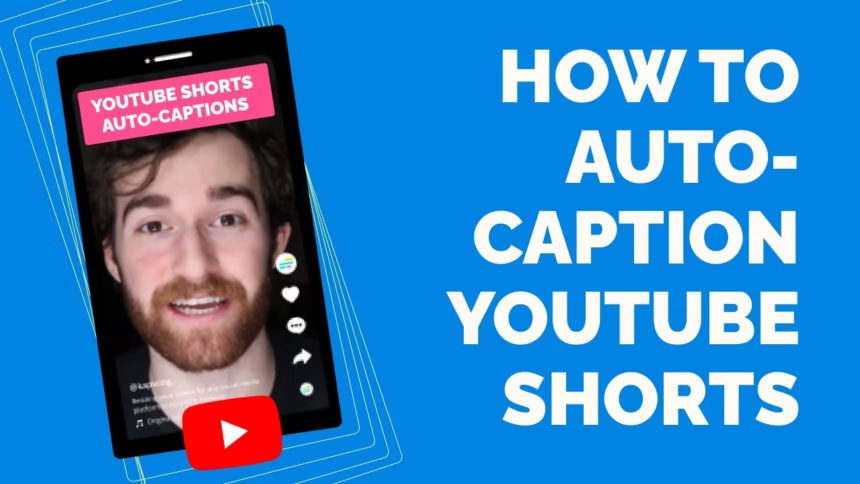
Viewers scroll with sound off. That kills your hook if words are only spoken. Add captions and your Shorts stick, your message lands, and more people can watch. The fix is simple: use a free one-click auto caption tool, then post with confidence.
This guide shows the best free tools in 2025, fast steps, styles that work on mobile, and quick fixes. Expect notes on watermarks, export settings, and language support. Top picks you will see here: CapCut, YouTube Studio, SendShort, VEED.IO, and Kapwing.
Captions take minutes, and the payoff lasts long after you post. Ready to turn spoken words into on-screen text in one click?
Why Auto Captions Matter for Shorts, and How One Click Works
Captions boost retention, help viewers in quiet places, improve accessibility, and can support search. On YouTube Shorts and TikTok, that means more eyes stay on your video for longer, which nudges the algorithm in your favor.
One-click auto captioning is simple. The tool detects speech, turns it into text, and syncs timing to your audio. You then tweak a few words, choose a style, and check placement so no UI covers your lines.
A few notes creators care about:
- Best for vertical 9:16 videos, 15 to 60 seconds
- Works with spoken audio, not music-only tracks
- You can burn captions into the video or export files like SRT, but Shorts usually use burned-in text for style control
- Many languages are supported, but accuracy depends on audio quality, accents, and background noise
Fast checklist to choose a tool:
- Platform: mobile, web, or desktop
- Watermark on free plan
- Styling options: font, color, outline, animation
- Export speed and reliability
The Big Wins: Views, Watch Time, and Accessibility
- More views: captions hook scrollers who start on mute, so your first line lands even without sound.
- More watch time: moving words guide eyes, which keeps attention on the screen.
- Accessibility: Deaf and hard of hearing viewers can follow along, and more people can enjoy your content.
Most mobile viewers start with sound off. Captions help more people stay. Use them on every Short for consistent results.
What One-Click Auto Captioning Really Does
Here is the basic pipeline:
- Detect speech in your audio track
- Transcribe words to text
- Sync timing to your spoken lines
- Place text on screen
Burned-in captions are baked into the video and always visible. Separate files like SRT are flexible and useful for long-form, but for Shorts, burned-in text gives you style control and consistent readability. One click gets you about 90 percent there. Quick edits clean up names, slang, and brand terms.
Format and Platform Basics for Shorts
Edit in vertical 9:16. Keep text in the safe area, not too low, since TikTok and YouTube overlays can cover your words. Use large fonts with high contrast. Limit line length to two lines for fast reading. Place captions slightly above the bottom UI area so likes, comments, and scrub bars do not block content.
Best Free One-Click Tools in 2025, No Guesswork
These free options handle auto captions fast and let you style for mobile. Watermark rules on free plans can change, so check before you export.
- CapCut, fast, accurate, and trend-ready styles. Free exports sometimes include a small watermark or tag. Captions themselves are not watermarked inside the edit.
- YouTube Studio, automatic captions on upload, built in, no watermark. Captions are player-based unless you burn them in with an editor.
- SendShort, animated and kinetic text styles that pop. Free plans may include a watermark, so verify on export.
- VEED.IO, browser-based editor with one-click subtitles and style options. Free plan adds a watermark.
Honorable mentions:
- Kapwing, strong auto subtitles and web workflow, free plan often watermarked.
- Clipchamp, handy for quick edits on desktop, check current caption accuracy and watermark policy.
CapCut: Free, Fast, and No Watermark on Captions
CapCut is a top pick for many creators. It is free, runs on mobile and desktop, and the auto caption feature is accurate with clear speech. You get rich styling, like fonts, colors, outlines, emojis, and karaoke-style word highlights. The captions you add are not branded by the tool inside the timeline. Some exports or templates may include a small CapCut tag, so preview your final render.
Quick steps: import your video, tap Text, choose Auto captions, pick your language, generate, then style and export. Best for TikTok and Shorts creators who want trend-forward looks and fast results.
YouTube Studio: Free Auto Captions on Upload
YouTube Studio auto-generates captions when you upload, with support for many languages and simple edits. It is perfect if you mainly post to YouTube Shorts and want a free, built-in workflow. Limits: styling is basic, and captions appear in the YouTube player rather than being burned into the video. If you need burned-in text for brand control, download the captions or transcript and re-style them in an editor like CapCut.
Tip: double check names, product terms, and brand phrases after processing.
SendShort: Dynamic, Animated Captions, Free With Watermark
SendShort focuses on short-form videos. It offers animated styles and kinetic text that raise retention and help stop the scroll. The free plan commonly includes a watermark, so use it to test styles and pacing, then upgrade if you need clean exports.
Flow: upload your clip, auto transcribe, pick a preset, render, and export. Great for punchy TikTok trends and reels where motion text boosts the hook.
VEED.IO: Online Editor With One-Click Subtitles, Free With Watermark
VEED.IO runs in your browser, so there is no install and it works on any computer. You get auto captions, quick edits, and style controls. The free plan adds a watermark. Perks include keyword highlights, progress bars, and easy trims while you caption.
Tip: set brand colors for consistency across Shorts and reels.
Quick Start: 1-Minute Steps for Each Free Tool
Short, clear steps to get your first captioned Short live today.
CapCut Steps (Mobile or Desktop)
- Create a new project, import your vertical video
- Tap Text, choose Auto captions, pick your language
- Generate captions, then fix names or slang
- Style it: large font, bold outline, high contrast, safe zone above bottom UI
- Export in 1080×1920, high bitrate
Pro tip: use the karaoke highlight effect for key words to boost retention.
YouTube Studio Steps for Shorts
- Upload your Short in vertical 9:16
- Wait for auto captions to process
- Go to Subtitles, edit text for spelling and brand terms
- Publish. For burned-in captions, download the transcript or SRT and style it in an editor like CapCut
Pro tip: keep spoken lines short to improve accuracy.
Web Tools Steps (SendShort or VEED.IO)
- Open the site, upload your clip
- Click Auto Subtitle or similar, choose language
- Review text, fix errors
- Pick a style preset, adjust size and position
- Export. Free plans may add a watermark
Pro tip: test a 10 to 20 second clip first to preview styles before exporting the full video.
Style Captions That Keep Eyes on Screen
- Use big fonts, bold or outlined, and high contrast colors
- Keep to 2 lines max, 32 to 42 characters per line
- Avoid the bottom 10 percent of the frame to steer clear of buttons
- Add subtle animation or karaoke emphasis, but do not overdo it
- Match brand colors and font for a pro look
Fix Errors Fast, Export Clean, and Follow Platform Rules
Here is how to avoid common headaches and post with confidence.
Get Better Accuracy in Noisy or Fast Speech
- Record in a quiet room, face the mic
- Cut background music during talking
- Speak in short, clear sentences
- Use the correct language setting
- Fix names and slang after auto captioning
Accents are fine. Clear audio helps most.
Place Text Safely for TikTok and YouTube Shorts
Avoid the bottom and far right where buttons and bars live. Place captions slightly above center-bottom so they are easy to read but not blocked. Preview inside each app before posting. Keep key words away from edges to avoid cropping.
Watermarks, Limits, and When to Upgrade
Some free plans add a watermark. SendShort and VEED.IO often include one on free exports. CapCut and YouTube Studio are strong free choices if you want clean results without a forced watermark on captions or player-based text. Upgrade if you need volume, custom fonts, brand templates, or clean exports from web tools.
Export Settings That Look Crisp on Mobile
Use 1080×1920 resolution, high bitrate, and H.264 codec. Burn captions into the video to keep font and layout consistent on every platform. If you need files for long-form YouTube, export SRT, but for Shorts, keep captions baked in for style control.
Conclusion
The path is simple: pick a free tool, click auto captions, fix small errors, style for clarity, export, and post. Choose CapCut for an all-in-one editor with no caption watermark, use YouTube Studio if you only need YouTube playback captions, or try SendShort or VEED.IO for animated styles if a watermark is acceptable. Caption one Short today and watch retention move in the right direction. Save your style preset so the next five posts take minutes, not hours.