




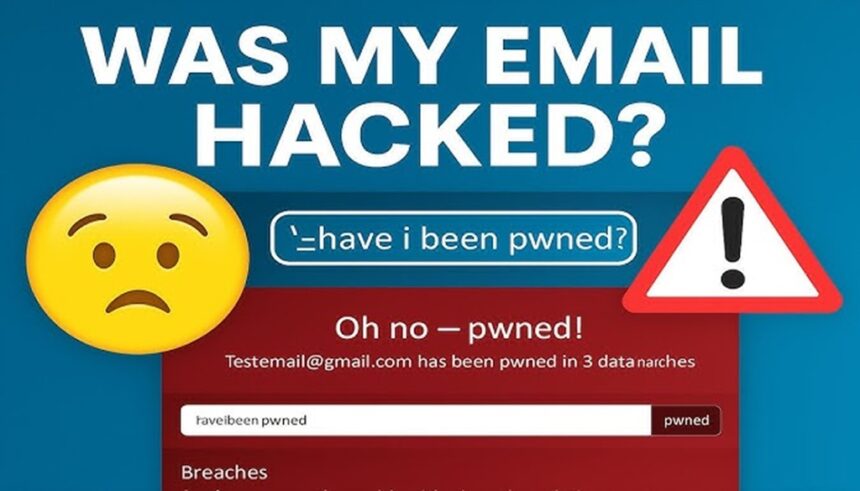
The morning starts like any other. Someone opens their inbox, sips coffee, and sees it: messages in Sent they never wrote, replies from friends about “weird links,” and a notice about a login from another country. Their stomach drops.
Email feels boring until something goes wrong. Yet that inbox often controls bank logins, social media, shopping accounts, and work tools. When a hacker gets in, the risk of money loss, identity theft, and long‑term stress jumps fast.
This 2025 guide gives a simple, step‑by‑step email security checklist. It shows how to spot warning signs early, what to do right away, and how tools like the best password manager and multi‑factor authentication (MFA) can protect anyone, even non‑technical readers.
Quick Email Security Checklist: How to Spot a Hacked Account Fast
Here is a short checklist of common danger signs:
- Emails in Sent, Trash, or Drafts that you did not write
- Friends saying you sent them strange links or money requests
- Login alerts from unknown places, devices, or apps
- Password or recovery info changed without your action
- New filters, rules, or forwarding you never set
- Odd alerts or activity on other accounts tied to this email
Security experts still see these as classic red flags in 2025, and resources like Michigan’s consumer guide on recognizing a hacked email account echo the same list.
Strange emails in Sent, Trash, or Drafts that the user did not write
Hackers often test access by sending spam or scam emails from the victim’s account. These might be short notes with random links, poor spelling, or sudden money requests.
Readers should scroll through Sent, Trash, and Drafts and look for anything they do not remember sending. Many providers also show recent activity or security logs in settings, which help confirm suspicious behavior.
Friends or coworkers report weird messages or scam links
Often, the first clue comes from someone else. A friend might text, “Did you send this?” with a screenshot of a strange link or urgent money request.
Scammers may pretend to be the user, ask for gift cards, wire transfers, or private info, and use lines like “Is this you in this video?” Readers should save screenshots or examples as proof in case an employer, bank, or police report is needed later.
Login alerts from places, devices, or apps that the user does not recognize
Modern email providers often send alerts about new sign‑ins. These can mention a new device, browser, app, or country. In 2025, those alerts matter more than ever because phishing emails now use AI to trick people into sharing passwords.
Users should open the official security or account activity page for services like Gmail, Outlook, or Yahoo. They need to check for logins at strange times, from locations they did not visit, or from apps they do not use.
The password suddenly stops working, orthe recovery details have changed
If a correct password suddenly fails, a hacker may have already changed it. Unwanted password reset emails are another warning sign, especially if they arrive in a batch.
Readers should also watch for changed recovery phone numbers, backup emails, or security questions. If any of those look off, quick action is needed before the intruder locks the owner out completely.
Email settings, filters, or forwarding rules that the user did not set
Some attackers want to stay hidden. They create filters or forwarding rules that send copies of new mail to their own address while the victim sees nothing wrong.
Readers should open their email settings and check forwarding, rules, filters, auto‑replies, signatures, and connected apps. If emails vanish, auto‑archive, or show as read without reason, that may signal tampering.
Unusual security alerts or strange activity on other accounts
Since most password resets go through email, one hacked inbox can spread trouble. People may see reset emails from banks, social media, or shopping sites they did not request.
They should scan bank and card statements for unknown charges and look for security alerts from other services. Statistics from 2025 show that phishing starts over one‑third of data breaches, so any odd notice deserves attention.
What To Do Immediately If You Think Your Email Has Been Hacked
Once someone suspects a hack, they should act fast but stay calm. The safest plan is to clean their devices, secure the email account, review activity, and then protect linked accounts.
Step 1: Scan your device for viruses and malware
If the computer or phone is infected, any new password can be stolen again. Users should run a full antivirus or anti‑malware scan from trusted software.
If possible, they should start recovery from a second, clean device, such as a different laptop or phone they trust.
Step 2: Regain access to your email account safely
The person should sign in only from the official website or app, never from links inside emails. If they are locked out, they need to use the provider’s official recovery page.
Recovery often uses a backup email, phone number, or security questions. Some services may ask for ID or last known passwords, so having those ready helps.
Step 3: Change your password and store it with the best password manager
Once back in, they should create a brand‑new password with at least 12 characters, mixing letters, numbers, and symbols, and avoid names, birthdays, or common words.
Storing that login in the best password manager makes this much easier. A quality manager can create strong, unique passwords for every site, warn about weak or reused ones, and track data breaches. Reviews like Security.org’s guide to the best password managers of 2025 can help readers compare options.
Step 4: Turn on multi-factor authentication for extra protection
Multi‑factor authentication adds a second step after the password, often a code from a text or an app. Even if someone steals the password, they usually cannot pass this extra check.
Readers should turn on MFA in their email security settings and, when possible, use an authenticator app or hardware key instead of only SMS.
Step 5: Log out of other sessions and remove unknown devices or apps
Most major email providers show a list of active sessions and signed‑in devices. The user should log out of all sessions, then sign in again only on devices they control.
They also need to remove unknown apps and old third‑party tools from the account access list.
Step 6: Check and reset the email settings changed by hackers
Next, they should review forwarding, filters, rules, auto‑replies, and signatures. If anything looks strange, delete it. When unsure, they can reset these features to default and rebuild only the rules they actually need.
They should also update recovery phone numbers, backup emails, and security questions. Answers should be hard to guess and not easy to find on social media.
Step 7: Protect other accounts connected to your email
Any account that uses this email for login or password resets may now be at risk. That includes banks, payroll, social media, cloud storage, and work tools.
Users should change passwords on their most important accounts first and turn on MFA there, too. They should watch for surprise logins, messages, or payments.
Step 8: Warn your contacts and report the incident
A short, honest note to contacts can prevent more harm. Something like: “My email was hacked for a short time. If you got odd messages from me, please delete them and do not click links.”
If money or personal data might be at risk, the victim should report the case to their email provider and, when needed, to banks or local police. People in the US who suspect identity theft can start a recovery plan at IdentityTheft.gov.
How To Lock Down Your Email So It Does Not Get Hacked Again
After the crisis, long‑term habits keep accounts safe. In 2025, phishing emails are smarter, with AI writing over a billion messages every day, but simple routines still give strong protection.
Use strong, unique passwords for every account with a trusted manager
Reusing one password for many sites is like using one key for every door. If hackers copy that key once, they can open everything.
A trusted password manager creates and stores different long passwords for each account and syncs them across devices. Many tools also offer breach alerts and password health checks, as covered in independent reviews of password managers.
Turn on multi-factor authentication everywhere you can
MFA should not just live on email. Readers should enable it on their password manager, bank, social media, and cloud account,s too.
SMS codes are better than nothing, but authenticator apps or hardware keys give stronger security and are harder for attackers to steal.
Stay alert for phishing emails, fake login pages, and bad links
Phishing emails often share the same tricks: strange sender addresses, urgent or threatening language, spelling mistakes, or offers that feel too good. Guides like Hoxhunt’s list of phishing red flags show common signs.
Users should hover over links to see the real address and type important website addresses directly into the browser or use bookmarks. Password managers also help because they usually will not auto‑fill on fake sites.
Keep devices, apps, and browsers updated and protected
Many hacks work because software is old, not because attackers are geniuses. Updates fix known holes that criminals use.
Readers should turn on automatic updates for phones, computers, browsers, and email apps. They should use screen locks and avoid logging into important email accounts on shared or public computers.
Review your security settings and account activity on a regular schedule
A simple routine works best. Every month or quarter, someone can take five to ten minutes to:
- Check recent login activity
- Review forwarding, filters, and connected apps
- Confirm recovery phone and backup email
- Run a quick malware scan
Families or small teams can turn this into a shared habit so everyone stays safer.
Conclusion
A hacked inbox starts with small clues: odd messages, login alerts, or settings that quietly change. With a clear checklist, anyone can spot the main signs, take quick steps to regain control, and build safer habits for the future.
Readers do not need deep technical skills, only a few strong tools like the best password manager and multi‑factor authentication, plus some steady routines. Taking ten minutes today to check email settings, update weak passwords, and turn on extra security is far easier than cleaning up after a full account takeover.
Related News:
How to Do Email Marketing For Your Business